

Nail Your Title (Think Search + Clickbait, But Not Deceiving)
-
Use keywords people are actually searching for.
-
Add curiosity or urgency:
-
"Best Public Golf Course in South Carolina?"
-
"What a $150 Round Looks Like at [Course Name]"
-
Keep it under 60 characters if you want it to show fully.
Write a Real Description (Not Just Hashtags)
First 2 lines = the hook. Treat it like ad copy.
-
Use the rest to include keywords naturally. Add:
-
What the video covers
-
Any location tags (e.g. Hilton Head, South Carolina)
-
Links to your website, booking, social media
-
End with a CTA: “Subscribe for more golf content” / “Book a round at [Course Name]”
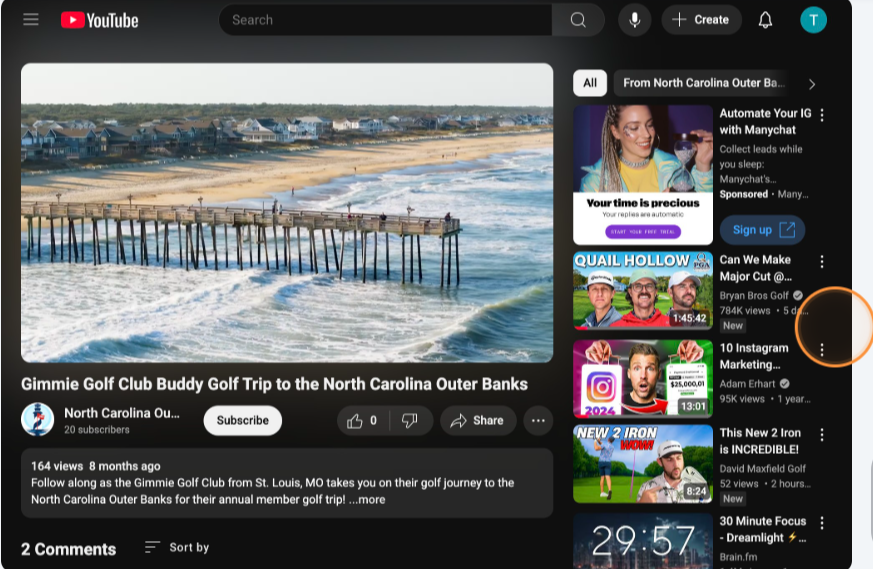
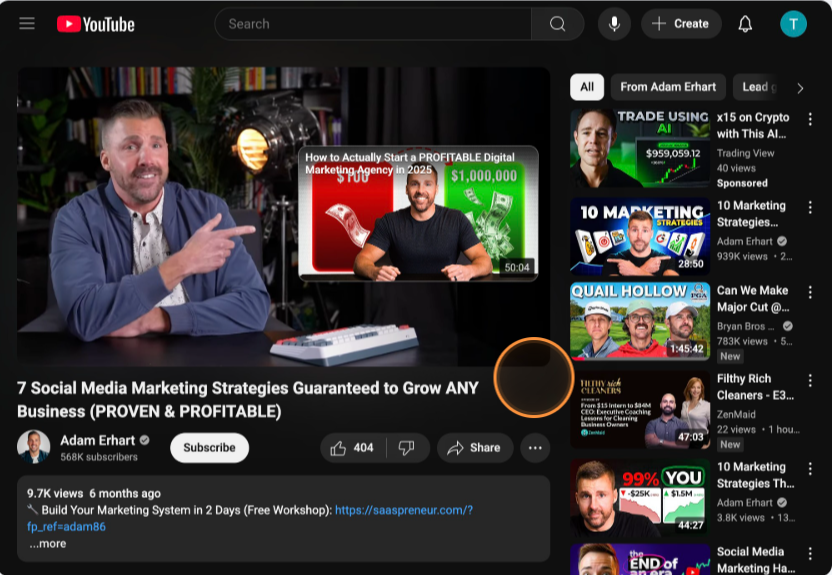
Custom Thumbnails Win Clicks
-
Don’t let YouTube auto-generate a thumbnail — upload your own.
-
Make it clear + bold, not cluttered.
-
Include a person if possible (faces perform better).
-
Add short text if helpful:
-
“Hidden Gem?” or “Course Tour”
-
We love these examples ↓
Watch Time > Everything
-
Hook your viewer in the first 8 seconds. No long intros.
-
Use on-screen text, movement, or a quick preview of what’s coming.
-
Ask a question or drop an unexpected fact.
Use Chapters (Timestamps)
YouTube loves them. Viewers love them.
Timestamps are time-based markers you add to your YouTube video description. They break your video into clear sections, like a table of contents.
Once you add them, YouTube automatically turns them into clickable chapters in the video progress bar, so viewers can jump straight to the part they want.
They look like this in your description ↓

Add End Screens + Cards
This is your chance to promote other videos, playlists, or your subscribe button.
The goal here is to get people to take action and either 1) watch more or 2) opt in to future notifications for your videos.
Engage With Comments
-
Reply. Like. Pin.
-
The more engagement, the more YouTube shows your video.
-
Bonus: Ask viewers a question at the end of the video.
Check the Analytics
Watch time, CTR (click-through rate), and audience retention are your holy trinity.
Use that data to improve future videos.
Where can you find this information?
Log in to your Youtube account and go to "Youtube Studio"
Then on the left sidebar select "Dashboard"
This is going to give you the analytics on your latest video.

Now, if you want to see your overall analytics and how your account is performing you'll select "Analytics" on that same sidebar.
This will give you a full view into your accounts performance along with detailed insights about your audience and any trends.

Final Thoughts
Optimization isn’t about tricking the algorithm.
It’s about showing YouTube (and real humans) that your content is worth watching and sticking around for.