


Why Link Your Facebook and Instagram Accounts?
If you manage a golf course, local business, or personal brand, connecting your Facebook and Instagram accounts through Meta (formerly Facebook Business Suite) is one of the easiest wins in your social media setup.
Here’s why it matters ↓
✅ Post Once, Publish Everywhere
No more copy/pasting or reposting. You can create a post or Reel once and share it to both platforms at the same time. Major time-saver.
✅ Schedule Content in Advance
Using Meta Business Suite (or tools like Sprout Social, Buffer, Later), you can plan and schedule posts across both platforms—weeks or months ahead.
✅ Reply to Comments + DMs in One Place
Respond to messages and comments from both platforms in one unified inbox.
✅ Run Ads More Effectively
You’ll need to connect your accounts if you want to run Instagram ads from Facebook’s ad manager, or boost posts from either platform.
✅ Access More Insights + Analytics
Track performance, compare platforms, and adjust your strategy using real data (available only through connected business accounts).
✅ Enable Third-Party Tools
If you want to use tools like Sprout Social, Later, Canva, Metricool, or even Shopify, you’ll need your accounts connected to grant access.
Step-by-Step: How to Connect Facebook + Instagram Through Meta
 You’ll need
An Instagram Business or Creator Account
A Facebook Page (not just a personal profile)
Admin access to both
 Step 1: Go to Meta Business Suite
Visit: business.facebook.com
If you haven’t set up Meta Business Suite yet, Facebook will walk you through it in just a few steps.
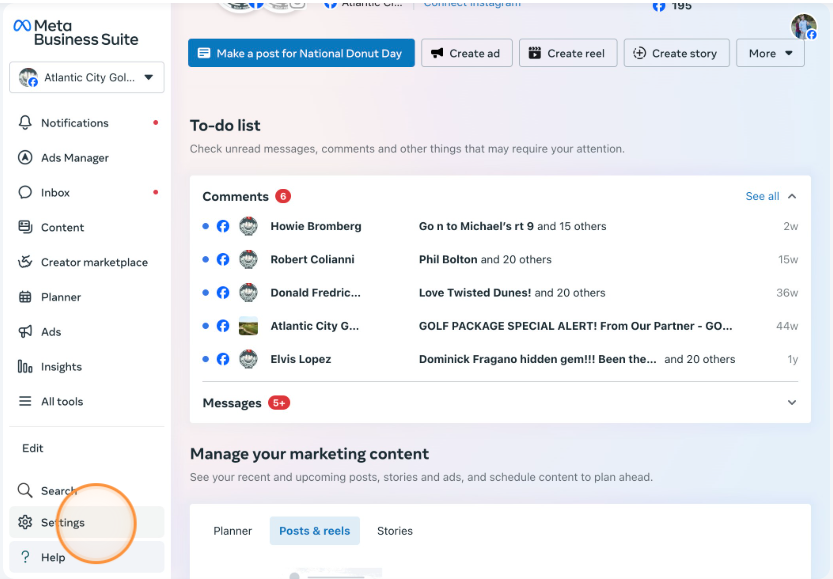
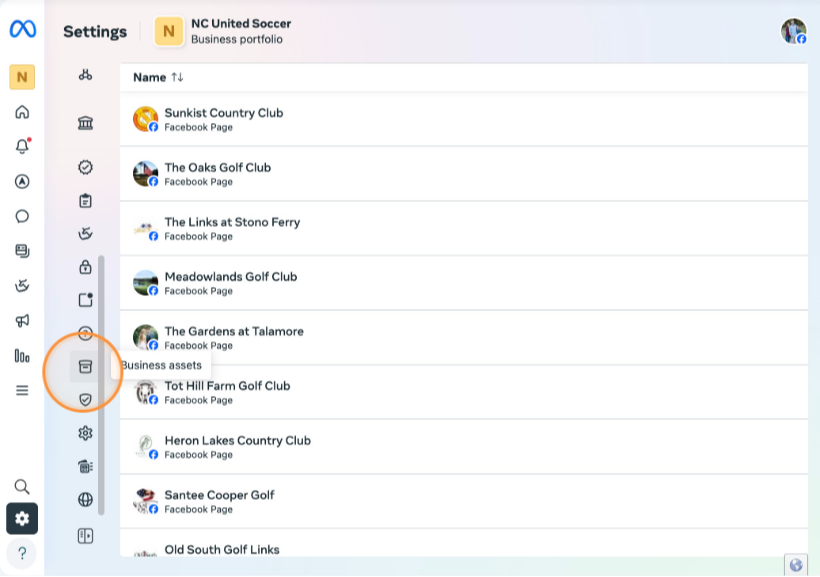
Step 2: Go to Settings → Business Assets
-
In the left-hand menu, click “Settings"
-
Then scroll down and click “Business Assets”
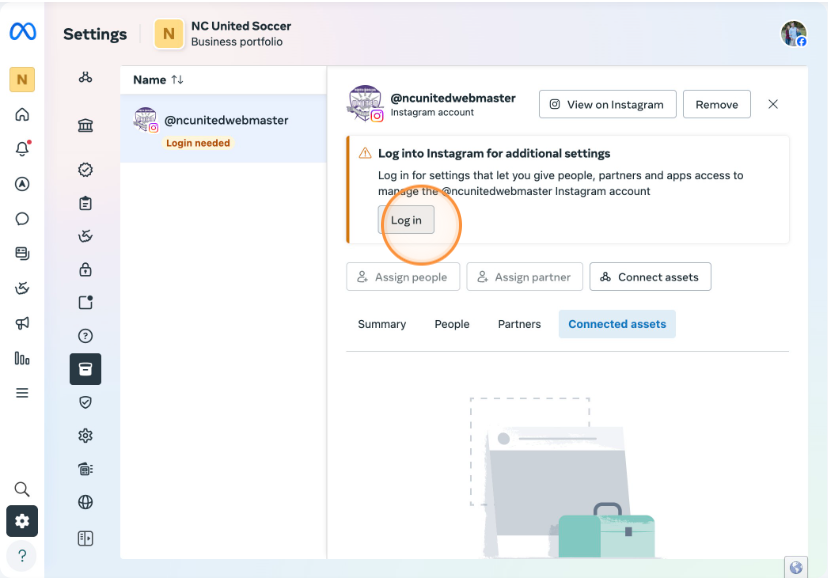
- Under Accounts, choose “Instagram Accounts”
- Click “Add” → Log into your Instagram
Follow the prompts to connect.
Step 3: Confirm Connection on Instagram
On your Instagram app:
-
Go to Settings → Account → Sharing to Other Apps
-
Make sure your Facebook Page is listed and checked
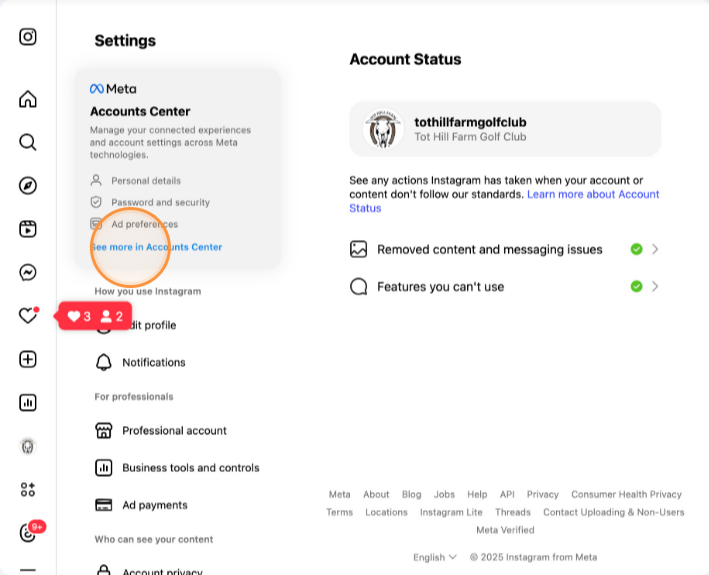
Go to "Settings"
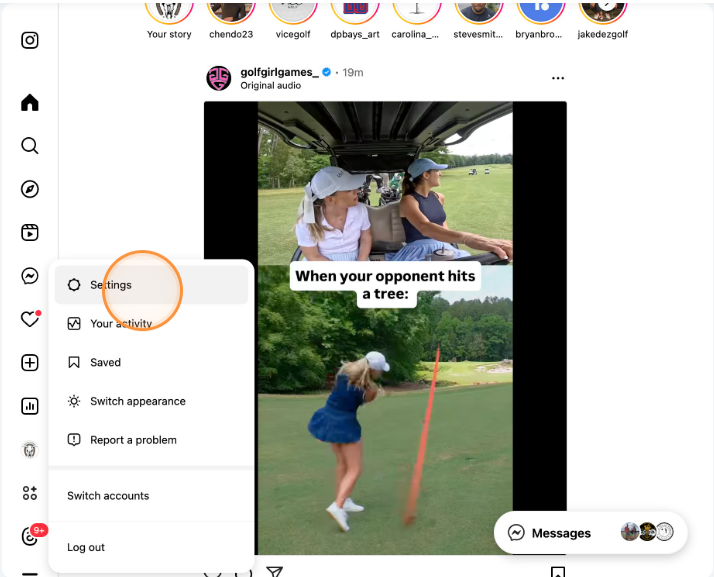
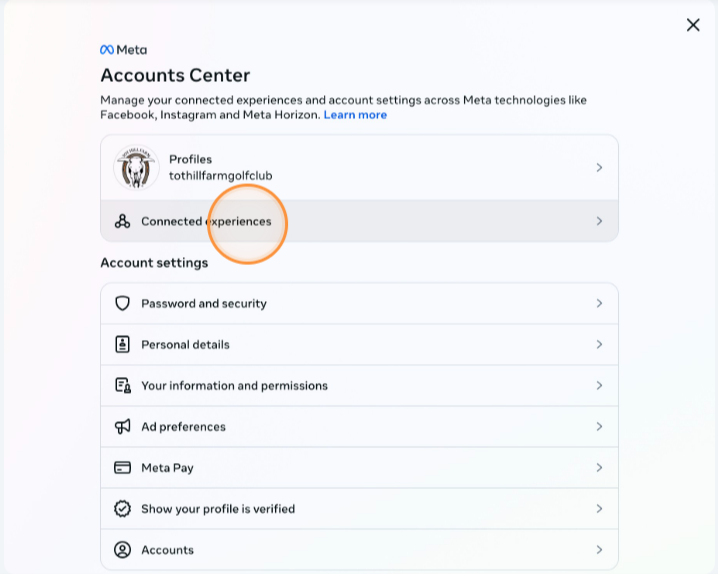
Click "See more in Accounts Center"
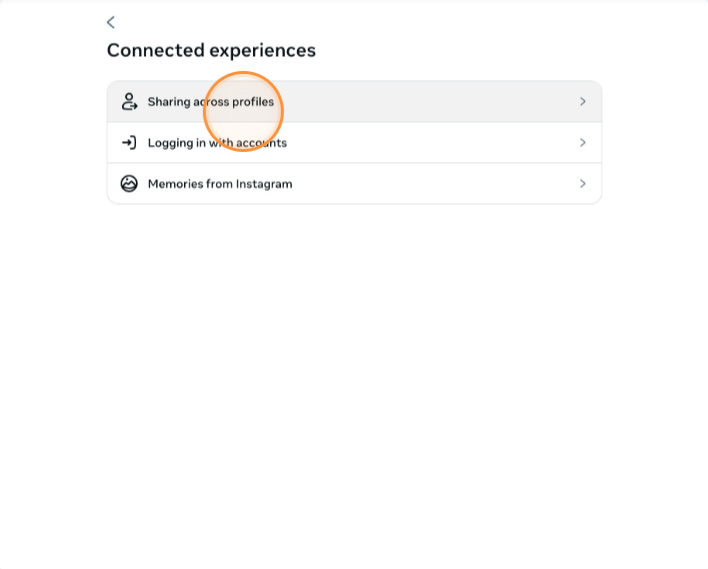
Click "Connected experiences"
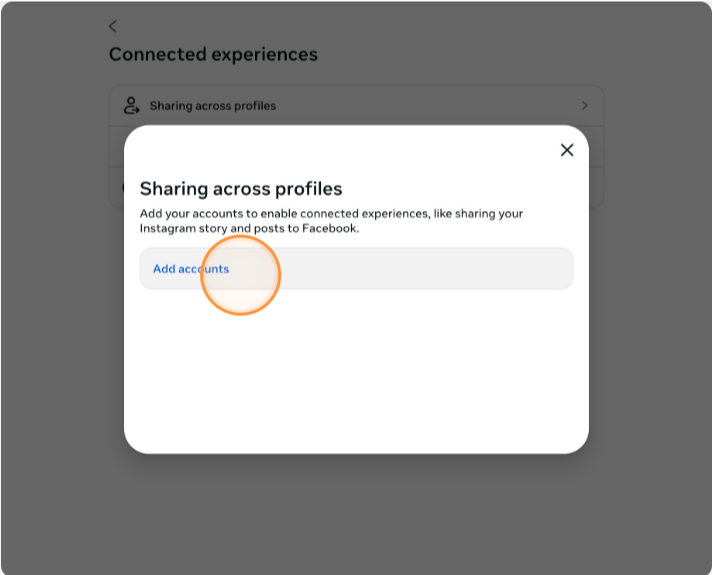
Click "Sharing across profiles"
Click "Add accounts"
Step 4: Use Meta to Create + Schedule Posts
Now that you’re connected, you can:
-
Create one post and publish to both Facebook + Instagram
-
Schedule Reels or Stories in advance
-
View performance analytics in one dashboard
-
Manage ad campaigns across both platforms
Trouble Connecting?
Here are a few quick fixes:
✔️ Make sure both accounts are Business or Creator accounts
✔️ Log into Instagram in your browser before connecting
✔️ Use a Meta Business Manager Admin account to connect
✔️ Clear browser cache or use a different browser if things get stuck
Final Thought
If you're running social for a course, brand, or business and your Facebook and Instagram accounts aren’t connected yet, you're leaving time, insights, and growth on the table.
It takes 5 minutes to set up, but saves hours in the long run.

